
SPFx Application Customizer: Build Global Headers & Footers
Build a global header and footer for SharePoint with an SPFx Application Customizer extension. Complete guide includes tenant-wide deployment instructions.
The Problem SharePoint Add-in Retirement Created
On April 2, 2026, Microsoft officially retired SharePoint Add-ins. Every SharePoint Add-in stopped working across all tenants — no extensions, no exceptions. (Microsoft Learn)
If your organization had a custom branded header or footer deployed via an Add-in, it stopped rendering that day. The only supported replacement is a SharePoint Framework Application Customizer extension — and if you have not migrated yet, this guide will walk you through building one from scratch in 2026.
Even if you were never on Add-ins, Application Customizers are the right tool whenever you need something to appear on every page across your SharePoint tenant: a cookie consent banner, a global navigation bar, an emergency announcement strip, or a branded footer with links and contact information.
Key Takeaways
- Application Customizers are SPFx extensions that inject HTML into two page-level placeholders:
PageHeaderandPageFooter.
- They run on every modern SharePoint page — site pages, list views, document libraries — without any per-page configuration.
- Tenant-wide deployment via the Tenant Wide Extensions list pushes your customizer to all sites automatically, without requiring site owners to install anything.
- The April 2026 SharePoint Add-in retirement deadline means any organization still relying on Add-in-based branding needs to migrate now.
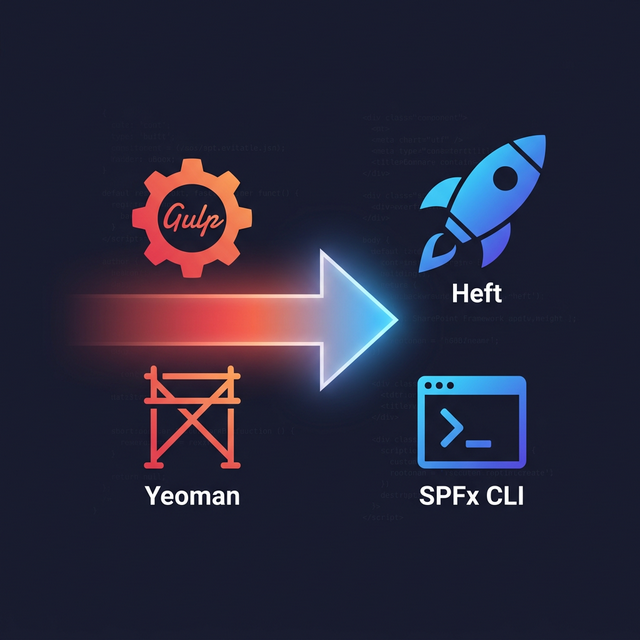
- In SPFx 1.22+, new extension projects use the Heft build system instead of Gulp. The scaffolding and build commands changed.
- Field Customizers are being retired on June 30, 2026 — but Application Customizers and Command Sets are unaffected and fully supported.
What Is an SPFx Application Customizer?
The SharePoint Framework offers four types of extensions that run inside the SharePoint page itself, outside the boundaries of a web part zone:
| Extension Type | Purpose | Status |
|---|---|---|
| Application Customizer | Page-level scripts and HTML via placeholders | Supported |
| Command Set | Buttons in list/library toolbars and context menus | Supported |
| Form Customizer | Override new/edit/view forms in lists | Supported |
| Field Customizer | Custom column rendering in list views | Retiring June 30, 2026 |
Application Customizers sit at the top of this list because they have the broadest surface area: your code runs on every page load across every site in the tenant.
The two available placeholders are:
PageHeader— the strip at the very top of every SharePoint modern page, above the suite bar
PageFooter— the strip at the bottom of every page, below page content
You get a <div> node to render whatever HTML you want into both placeholders. React, plain HTML, or a third-party framework — all valid.
SPFx Application Customizer in Practice: What Organizations Build
Tens of millions of users interact with custom SPFx solutions on a daily basis in Microsoft 365. (Microsoft 365 Developer Blog) Application Customizers are among the most commonly deployed extension types because the use cases are universal:
Header use cases:
- Global navigation bar with megamenu
- Announcement banners ("System maintenance this weekend")
- Logged-in user's name and profile photo
- Breadcrumb navigation override
- GDPR cookie consent banner (required to fire before page interaction)
Footer use cases:
- Company branding: logo, copyright, legal links
- Help desk contact information
- Site-specific metadata (last modified date, site owner)
- Accessibility statement link
Any of these would previously have been deployed as a SharePoint Add-in or a JavaScript injection via a user custom action. Both approaches are now retired. Application Customizer is the supported path forward.
Prerequisites
Before scaffolding, confirm your environment matches current requirements.
Required software:
- Node.js v22 LTS (the only version supported by SPFx 1.22/1.23) (Microsoft Learn — SPFx Compatibility)
- A SharePoint Online tenant with a configured App Catalog
- VS Code (recommended)
Check your Node version:
node --version
# Should output v22.x.x
If you are on Node 18 or 20, use nvm-windows to switch:
nvm install 22
nvm use 22
Install the SPFx toolchain (SPFx 1.23 + Heft):
npm install -g @microsoft/generator-sharepoint@1.23.0If you have already migrated to the new SPFx CLI preview (introduced in SPFx 1.23), you can use that instead.
Scaffold the Application Customizer
With SPFx 1.22 and later, new projects use Heft instead of Gulp. The Yeoman generator still works but the build scripts have changed. See the full Gulp-to-Heft migration guide if you are upgrading an existing project rather than starting fresh.
Run the Yeoman generator:
yo @microsoft/sharepointWhen prompted:
| Prompt | Answer |
|---|---|
| Solution name | contoso-header-footer |
| Target environment | SharePoint Online only |
| Component type | Extension |
| Extension type | Application Customizer |
| Name | ContosoHeaderFooter |
| Description | Global header and footer for Contoso intranet |
The scaffolded structure will look like this:
contoso-header-footer/
├── config/
│   ├── package-solution.json
│   └── serve.json
├── src/
│   └── extensions/
│       └── contosoHeaderFooter/
│           ├── ContosoHeaderFooterApplicationCustomizer.manifest.json
│           ├── ContosoHeaderFooterApplicationCustomizer.ts
│           └── loc/
│               └── myStrings.d.ts
├── package.json
└── rig.json          ← new in SPFx 1.22+ (Heft)
The rig.json file is new in the Heft-based toolchain — it points to @microsoft/spfx-web-build-rig and replaces the old gulpfile.js.
Writing the Application Customizer
Open ContosoHeaderFooterApplicationCustomizer.ts. The scaffolded class extends BaseApplicationCustomizer. You will override the onInit method to attach your header and footer.
Basic Placeholder Implementation
import { override } from '@microsoft/decorators';
import {
BaseApplicationCustomizer,
PlaceholderContent,
PlaceholderName
} from '@microsoft/sp-application-base';
export interface IContosoHeaderFooterApplicationCustomizerProperties {
headerMessage: string;
footerText: string;
}
export default class ContosoHeaderFooterApplicationCustomizer
extends BaseApplicationCustomizer<IContosoHeaderFooterApplicationCustomizerProperties> {
private _headerPlaceholder: PlaceholderContent | undefined;
private _footerPlaceholder: PlaceholderContent | undefined;
@override
public onInit(): Promise<void> {
this.context.placeholderProvider.changedEvent.add(this, this._renderPlaceholders);
this._renderPlaceholders();
return Promise.resolve();
}
private _renderPlaceholders(): void {
// --- HEADER ---
if (!this._headerPlaceholder) {
this._headerPlaceholder =
this.context.placeholderProvider.tryCreateContent(PlaceholderName.Top);
}
if (this._headerPlaceholder) {
const message: string =
this.properties.headerMessage || 'Welcome to the Contoso Intranet';
this._headerPlaceholder.domElement.innerHTML = `
<div class="contoso-header" role="banner">
<div class="contoso-header__inner">
<a class="contoso-header__logo" href="/" aria-label="Contoso Home">
<img src="/sites/intranet/SiteAssets/logo.svg" alt="Contoso" height="32" />
</a>
<span class="contoso-header__message">${this._escapeHtml(message)}</span>
</div>
</div>
`;
}
// --- FOOTER ---
if (!this._footerPlaceholder) {
this._footerPlaceholder =
this.context.placeholderProvider.tryCreateContent(PlaceholderName.Bottom);
}
if (this._footerPlaceholder) {
const year = new Date().getFullYear();
const footerText: string = this.properties.footerText || 'Contoso Corporation';
this._footerPlaceholder.domElement.innerHTML = `
<div class="contoso-footer" role="contentinfo">
<div class="contoso-footer__inner">
<span>© ${year} ${this._escapeHtml(footerText)}. All rights reserved.</span>
<nav class="contoso-footer__links" aria-label="Footer navigation">
<a href="/sites/intranet/SitePages/Privacy.aspx">Privacy Policy</a>
<a href="/sites/intranet/SitePages/Accessibility.aspx">Accessibility</a>
<a href="https://support.contoso.com">Help Desk</a>
</nav>
</div>
</div>
`;
}
}
private _escapeHtml(text: string): string {
return text
.replace(/&/g, '&')
.replace(/</g, '<')
.replace(/>/g, '>')
.replace(/"/g, '"');
}
}Why changedEvent Matters
SharePoint renders placeholders lazily. On some pages, PlaceholderName.Top or PlaceholderName.Bottom may not be available when onInit first runs — they become available later during the page load cycle. Subscribing to changedEvent ensures your callback fires again whenever the placeholder provider's state changes, so your header/footer always renders even on complex page layouts.
Passing Properties from the Tenant Wide Extensions List
Notice the interface IContosoHeaderFooterApplicationCustomizerProperties. Properties declared here can be passed as JSON via the ClientSideComponentProperties column in the Tenant Wide Extensions list. This allows site collection administrators to customize the header message per site without changing the code.
Example JSON you would put in ClientSideComponentProperties:
{
  "headerMessage": "Internal use only — Contoso employees",
  "footerText": "Contoso Legal & Compliance"
}
This pattern keeps your extension generic while allowing per-tenant or per-site configuration. The same compiled .sppkg runs everywhere; only the properties differ.
Styling Without Violating SharePoint's CSP
Starting in January 2026, SharePoint Online enforces style-src Content Security Policy headers on all GA tenants. Inline <style> tags injected into innerHTML will be blocked. If you have reviewed the CSP enforcement changes, you know that the fix is to use CSS Modules or load styles through the SPFx styles module.
The safe approach in SPFx extensions is to use CSS Modules or import styles via @microsoft/load-themed-styles:
// Import as a CSS Module (safe under CSP)
import styles from './ContosoHeaderFooter.module.scss';

// Then reference in your HTML template
this._headerPlaceholder.domElement.innerHTML = `
  <div class="${styles.contosoHeader}" role="banner">
    ...
  </div>
`;
SPFx compiles SCSS modules into hashed class names at build time and injects a <link> tag into the page — which is CSP-compliant. Never inject a <style> block directly into domElement.innerHTML.
Build and Package
With Heft (SPFx 1.22+), the build commands changed from Gulp. Your package.json scripts now look like:
{
  "scripts": {
    "build": "heft build --clean",
    "bundle": "heft build --clean -- --ship",
    "package": "heft build --clean -- --ship && gulp package-solution --ship"
  }
}
Build for production:
npm run bundleThen package:
gulp package-solution --shipThis generates a .sppkg file in sharepoint/solution/. The separation between the build step (now Heft) and the packaging step (still a Gulp task for now) is temporary — SPFx 1.24 will complete the migration. See the Heft migration guide for full details.
Deploying to SharePoint Online
Option A: Manual Upload
- Open your SharePoint Admin Center
- Navigate to More features → Apps → App Catalog
- Upload the
.sppkgto the Apps for SharePoint library
- Check Make this solution available to all sites in the organization
- Click Deploy
After deployment, go to the Tenant Wide Extensions list in the App Catalog site collection (/lists/TenantWideExtensions) and verify a new entry was created automatically.
Option B: PnP PowerShell (Recommended)
For repeatable, scriptable deployments, use PnP PowerShell. This is especially useful in CI/CD pipelines. Refer to the PnP PowerShell admin scripts guide for environment setup if you have not configured PnP PowerShell yet.
# Connect to the App Catalog site
Connect-PnPOnline -Url "https://contoso.sharepoint.com/sites/appcatalog" -Interactive

# Upload and deploy the solution package
Add-PnPApp -Path ".\sharepoint\solution\contoso-header-footer.sppkg" `
           -Scope Tenant `
           -Overwrite `
           -Publish

# Verify deployment
Get-PnPApp -Scope Tenant | Where-Object { $_.Title -like "*contoso*" }
The -Scope Tenant flag uploads to the tenant app catalog and automatically populates the Tenant Wide Extensions list for Application Customizer solution types when skipFeatureDeployment is set to true in package-solution.json.
Configuring package-solution.json for Tenant Deployment
Open config/package-solution.json and confirm this flag is set:
{
  "solution": {
    "name": "contoso-header-footer-client-side-solution",
    "id": "your-solution-guid",
    "version": "1.0.0.0",
    "skipFeatureDeployment": true,
    "isDomainIsolated": false
  }
}
Setting skipFeatureDeployment: true is what enables tenant-wide deployment. Without it, site owners would need to manually install the app on each site.
Tenant Wide Extensions List: Controlling Scope
After deployment, your Application Customizer appears in the Tenant Wide Extensions list at your App Catalog URL:
https://contoso.sharepoint.com/sites/appcatalog/lists/TenantWideExtensionsEach list item represents one active extension registration. The key columns are:
| Column | Purpose |
|---|---|
| Title | Display name for this extension registration |
| TenantWideExtensionComponentId | The GUID from your manifest |
| TenantWideExtensionLocation | ClientSideExtension.ApplicationCustomizer |
| TenantWideExtensionListTemplate | Filter to specific list types (leave blank for all pages) |
| TenantWideExtensionWebTemplate | Filter to specific site templates (e.g., GROUP#0 for modern team sites) |
| TenantWideExtensionSequence | Order when multiple customizers are active |
| ClientSideComponentProperties | JSON properties passed to your customizer |
Targeting specific site templates is useful when you want different headers for communication sites versus team sites. Set
TenantWideExtensionWebTemplate to SITEPAGEPUBLISHING#0 for communication sites only, or GROUP#0 for Microsoft 365 group-connected team sites only.Debugging the Application Customizer
The classic SPFx Workbench (/_layouts/15/workbench.aspx) does not support extensions — it only renders web parts. To debug an Application Customizer, you test it in a real SharePoint page.
SPFx 1.23 ships a new debugging toolbar that improves this experience significantly. (SharePoint Framework Debug Toolbar — Microsoft Learn) When you start the local server and add the ?loadSPFX=true&debugManifestsFile=... query parameters to a real SharePoint page URL, the debugging toolbar now appears in-page to give you direct feedback — no more relying solely on browser console messages.
Local Debugging Steps
- Start the local manifest server:
npm run serve
# or with Heft:
heft build --watch- Open
config/serve.jsonand update thepageUrlto a real SharePoint page in your tenant.
- Navigate to the URL shown in the console — it will be your real SharePoint page with additional query parameters. Accept the loading of debug scripts in the dialog that appears.
- Your Application Customizer loads from your local machine into the live SharePoint page.
Common Debugging Issues
Placeholder returns undefined:
The placeholder is not yet available when your code runs. Ensure you are subscribing to changedEvent as shown in the code above, not just calling tryCreateContent once in onInit.
Header renders but footer does not:
Some SharePoint page layouts (like full-width pages without sections) do not render the PageFooter placeholder. Test on a standard page with sections.
Customizer runs multiple times:
Each navigation in modern pages triggers the page load lifecycle again. Implement a guard check:
private _headerRendered = false;

private _renderPlaceholders(): void {
  if (!this._headerRendered) {
    // render header
    this._headerRendered = true;
  }
}
Connecting to Graph API Data
One of the most powerful Application Customizer patterns is showing the current user's information in the header. Since you have access to this.context.msGraphClientFactory, you can call the Microsoft Graph API directly from your customizer — the same way you would in an SPFx web part.
import { MSGraphClientV3 } from '@microsoft/sp-http';

// In onInit or _renderPlaceholders:
const client: MSGraphClientV3 = await this.context.msGraphClientFactory
  .getClient('3');

const me = await client
  .api('/me')
  .select('displayName,jobTitle,officeLocation')
  .get();

// Use me.displayName in your header HTML
Refer to the Graph API in SPFx user profiles guide for the full authentication flow and permission configuration needed to call user endpoints.
For advanced scenarios like reading SharePoint list data for dynamic navigation, also see PnP JS in SPFx for a cleaner data-access layer.
Upgrading Existing Add-in-Based Headers
If you are migrating from a retired SharePoint Add-in, the pattern is:
- Identify what JavaScript your Add-in was injecting (check the User Custom Actions list via PnP PowerShell:
Get-PnPCustomAction -Scope Site)
- Port that logic into the Application Customizer TypeScript class
- Replace any JSOM or REST calls with PnP JS or Graph SDK equivalents
- Deploy via the App Catalog and retire the old custom action
The key difference from user custom actions (which injected <script> tags directly into the page) is that your customizer code runs inside the SPFx bundle, which is loaded and executed by the SPFx runtime in a sandboxed context. This is more secure and compliant with SharePoint's CSP enforcement.
FAQ: SPFx Application Customizer
Will Application Customizers work after the SharePoint Add-in retirement on April 2, 2026?
Yes. The April 2, 2026 retirement affects SharePoint Add-ins and Azure ACS authentication — not SPFx extensions. Application Customizers, Command Sets, and Form Customizers are fully supported and are the official replacement for Add-in-based customizations. (Microsoft Learn — Add-in Retirement)
Can I have multiple Application Customizers active at the same time?
Yes. Multiple entries in the Tenant Wide Extensions list can coexist. Use the TenantWideExtensionSequence column (a number) to control the order in which they render. Lower numbers render first. Be mindful that each customizer adds to page load time — keep your bundle size small.
What Node.js version should I use for SPFx extensions in 2026?
Node.js v22 LTS is the only officially supported version for SPFx 1.22 and 1.23. Node.js v18 reached end-of-life on April 30, 2025. If you are still on Node 18 or 20, upgrade before building or deploying. (SPFx Compatibility Reference)
Do Application Customizers work on classic SharePoint pages?
No. SPFx extensions — including Application Customizers — only work on modern SharePoint pages. Classic pages (wiki pages, publishing pages) do not support SPFx extensions. Given that 75% of organizations use SharePoint as part of their Microsoft 365 subscription and Microsoft has been blocking creation of new Classic Publishing Sites since 2025, most intranets are already on modern pages.
Will the Field Customizer retirement on June 30, 2026 affect Application Customizers?
No. The retirement announced by Microsoft affects only Field Customizers — the extension type used to render custom column values in list views. Application Customizers, Command Set extensions, and Form Customizers are explicitly excluded from this retirement and remain fully supported. (Voitanos — Field Customizer Retirement)
What Comes Next for SPFx Extensions
SPFx 1.23 — planned for general availability on April 15, 2026 — adds two features directly relevant to extensions:
- Navigation Customizers: A new extension type (in addition to Application Customizer) that specifically targets navigation node overrides. This will enable replacing the top navigation or quick launch bar with SPFx components, something previously requiring Application Customizer workarounds.
- List Command Set Grouping: Command Sets will support grouping buttons in toolbars and context menus, giving them better visual organization in large solutions.
SPFx 1.23.1, planned for late April 2026, adds new and edit panel override support, allowing SPFx to intercept the new/edit form panel on Microsoft Lists and SharePoint lists — currently achievable only through Form Customizers.
These additions continue SPFx's trajectory as the primary extensibility surface for all of Microsoft 365. The quarterly release cadence announced in early 2026 means you can expect predictable feature updates every three months going forward.
For a full picture of what changed in the build toolchain this year — the Gulp-to-Heft move and the new SPFx CLI that replaced the Yeoman generator — see the Heft and webpack migration guide.